Privacy-Focused UniFi Protect Setup: A Guide for Security-Conscious Users
In an age where surveillance is everywhere, even your own security system can become a privacy risk if not configured properly. UniFi Protect offers powerful tools for home and business security, but with great power comes the responsibility to protect your own data. This guide walks you through a privacy-first setup of UniFi Protect—ensuring your footage stays secure, local, and under your control.
In an age where surveillance is everywhere, even your own security system can become a privacy risk if not configured properly. UniFi Protect offers powerful tools for home and business security, but with great power comes the responsibility to protect your own data. This guide walks you through a privacy-first setup of UniFi Protect—ensuring your footage stays secure, local, and under your control.
Much of this is overkill for a home system, but businesses should have a security plan and process in place for their security camera system and much if not all of the information will apply.
🔍 Why Privacy Matters in Surveillance
While UniFi Protect is designed to be self-hosted and doesn’t rely on cloud storage, there are still risks:
Unauthorized remote access
Data leaks from misconfigured networks
Overexposure of camera feeds to unnecessary users
A privacy-focused setup minimizes these risks while maintaining full functionality.
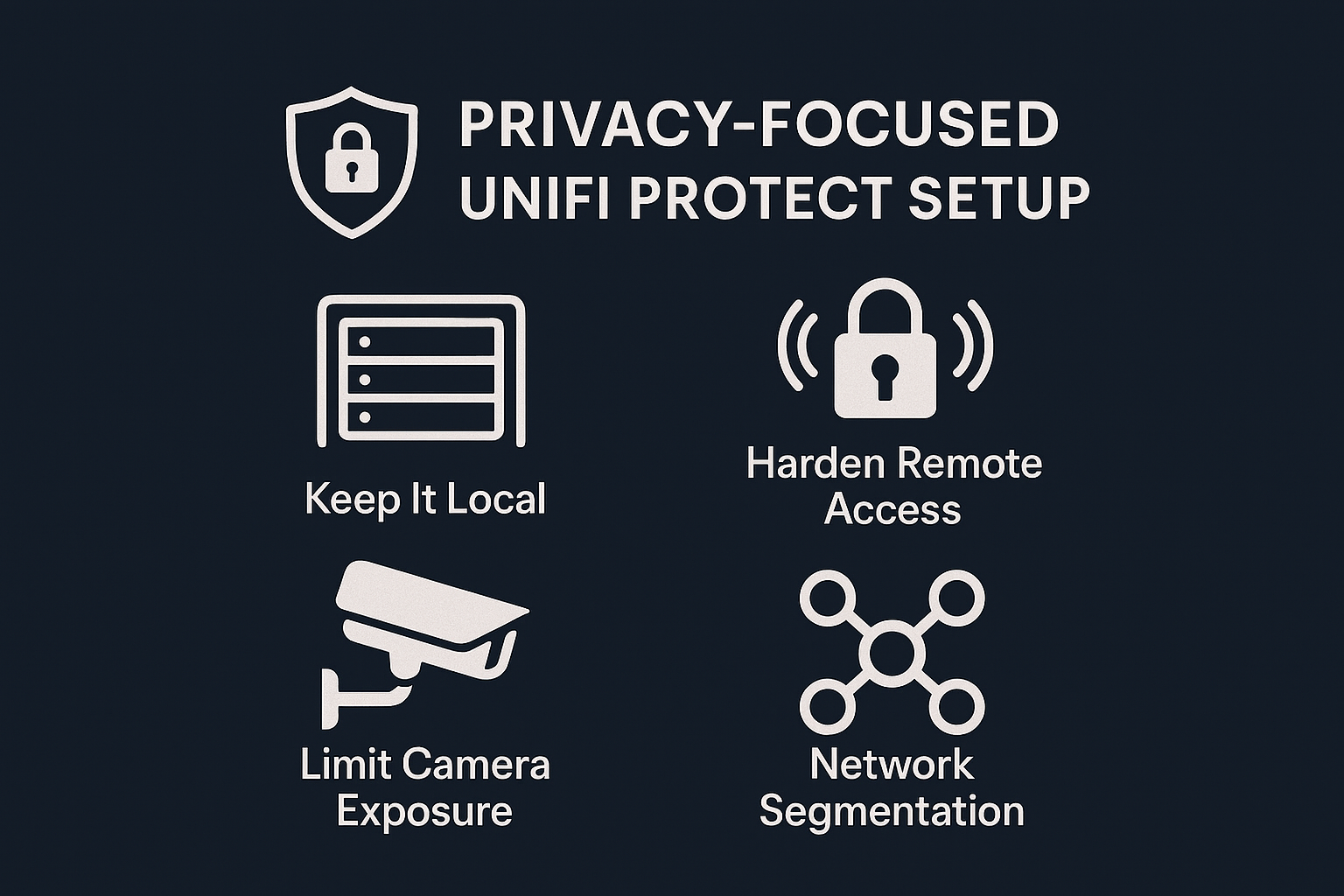
🧱 Step 1: Keep It Local
Avoid using cloud backups unless absolutely necessary. UniFi Protect stores footage locally on devices like the UniFi Dream Machine Pro or Cloud Key Gen2 Plus. To enhance privacy:
Consider using RAID configurations to enhance data redundancy
Set up external drives or NAS for local backups.
Disable remote backups unless encrypted and under your control.
🔐 Step 2: Harden Remote Access
If you need remote access:
Use VPNs (UniFi Network routers like the Dream Machine make this easy) instead of exposing ports.
Disable Ubiquiti’s remote access unless you trust their cloud infrastructure.
Use strong, unique passwords and enable 2FA on your UniFi account. Don’t use SMS as a 2nd factor it’s just too easy to compromise.
🧭 Step 3: Limit Camera Exposure
Not every camera needs to be accessible to every user:
Create user roles with limited permissions.
Disable live view or playback for users who don’t need it.
Avoid placing cameras in sensitive areas like bedrooms or private offices.
🧩 Step 4: Network Segmentation
Use VLANs to isolate your UniFi Protect system:
Place cameras and NVR on a dedicated VLAN.
Restrict inter-VLAN traffic using firewall rules.
Ensure IoT devices are isolated from your NVR to prevent unauthorized access. I found this may be difficult as some of my home IoT devices did not faction well when VLANed. Sonos was uniquely difficult as the mobile app only see devices on the same subnet.
🧼 Step 5: Regular Audits & Updates
Privacy isn’t a one-time setup—it’s ongoing:
Regularly review user access logs.
Keep firmware and software up to date. Turn on automatic updates to keep your UniFi system updated.
Audit camera placement and coverage zones to avoid overreach.
🧠 Bonus: Ethical Surveillance Practices
Inform guests or employees about camera presence.
Avoid audio recording unless legally permitted.
Use motion and smart zones to reduce unnecessary recording.
✅ Final Thoughts
UniFi Protect gives you full control over your surveillance system—but with that control comes the responsibility to protect your privacy. By following these steps, you can enjoy peace of mind knowing your security system isn’t compromising your personal data.
Some of these solutions are complicated to implement. Feel free to contact me if you need help. I’m happy to give up 30 minutes of my time to give you some direction.
Unlocking Smarter Surveillance: What the UniFi Protect AI Key and AI Port Add to Your System
The AI Key and AI Port are a game-changers. It allows you to modernize your surveillance system without a full hardware overhaul.
Ubiquiti’s UniFi Protect ecosystem is known for its sleek interface and reliable performance, but with the addition of the AI Key and AI Port, it now offers enterprise-grade AI capabilities—even for older or third-party cameras. Whether you're upgrading legacy UniFi models or integrating ONVIF-compliant devices, these tools bring powerful features like facial recognition, license plate detection, and natural language search to your fingertips.
What Does the UniFi AI Key Add?
The AI Key is an edge AI appliance that processes smart detections from UniFi cameras and enhances them with advanced features:
NeXT AI Summary: Automatically generates descriptive summaries of events.
Speech-to-Text: Transcribes spoken audio into searchable text.
License Plate Recognition (LPR) and Facial Recognition: Adds identification capabilities to G4/G5 cameras.
Natural Language Search: Lets users search footage using phrases like “person in red shirt near entrance.”
AI Enhanced Alarms: Enables custom alerts based on object descriptors.
The AI Key can add features all cameras with AI detection. AI detection is a requirement for the AI Key as it reprocesses AI events as detected by the individual cameras. For older UniFi and 3rd party cameras, the AI Port may be required to get the AI Features.
The AI Key can handle up to 1,000 detections per hour, so strategic camera pairing may be important on large deployments. Mutiple AI Keys can be installed for larger (enterprise) systems. It unlikely a home system will ever need more than one AI Key. With 15 cameras installed I’m getting fewer than a few hundred AI events a day.
What Is the UniFi AI Port?
The AI Port is a compact AI module that enables real-time AI processing for both older UniFi and third-party ONVIF cameras. It acts as a bridge, allowing older or non-UniFi cameras to benefit from UniFi Protect’s AI features.
Key Features:
Supports ONVIF Cameras: Adds AI to third-party cameras like i-Pro and UNV.
Real-Time AI: Enables live facial recognition, LPR, and object classification.
PTZ Support: Maintains pan-tilt-zoom functionality for compatible cameras.
Flexible Installation: Works over wired or wireless networks; PoE+ or PoE++ powered.
Stream Optimization: Automatically selects HQ/LQ streams for Protect integration.
Each AI Port currently supports one camera, but future updates will allow up to five UniFi cameras or up to three third-party HD cameras.
Using Third-Party Cameras with UniFi Protect
Thanks to the AI Port, third-party ONVIF-compliant cameras can now be integrated into UniFi Protect with full AI functionality. Here’s what you need to know:
Requirements:
ONVIF Protocol Support: The camera must support ONVIF for compatibility.
Standard Aspect Ratio: Cameras should have a resolution within 3840x2160 and a standard aspect ratio.
Audio Compatibility: For speech detection, microphones must support the full audible frequency range.
Network Access: Cameras must be on the same subnet as the UniFi console.
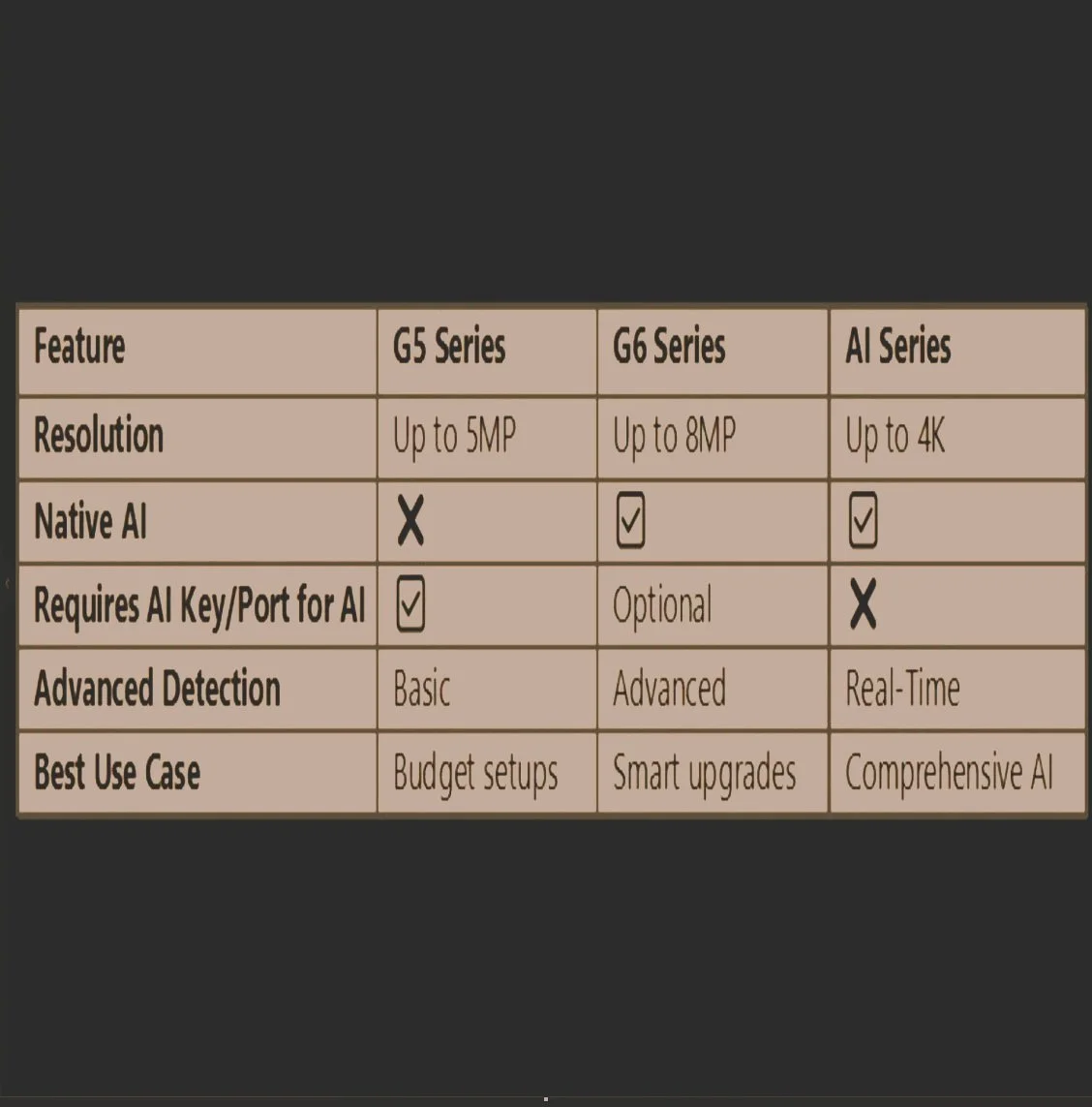
G5 vs. G6 vs. AI Series: Camera Comparison
G5 Cameras (e.g., G5 Bullet, G5 Turret): Reliable with basic detection. Use AI Key and AI Port for advanced features.
G6 Cameras (e.g., G6 Bullet, G5 Turret): Native AI support with better imaging and smart detection. Use AI Key for full AI features.
AI Series (e.g., AI Pro, AI Turret): Built-in AI features like speech-to-text and facial recognition—no AI Key or Port needed for Facial and License Plate Recognition. The AI Key does add Natural Language features and image enhancement.
Final Thoughts
Whether you're retrofitting older UniFi cameras, integrating third-party devices, or building a new AI-powered surveillance system, the AI Key and AI Port offer unmatched flexibility and intelligence. They allow you to maximize your existing infrastructure while unlocking the full potential of UniFi Protect.
If you're managing a mixed environment or want to avoid replacing hardware, these tools are a smart investment in future-ready security.
If you want to future proof your UniFi Protect system, these devices add that as well. Ubiquiti tech notes specifically call out that AI Key and AI Port will be upgraded via software updates with new features.